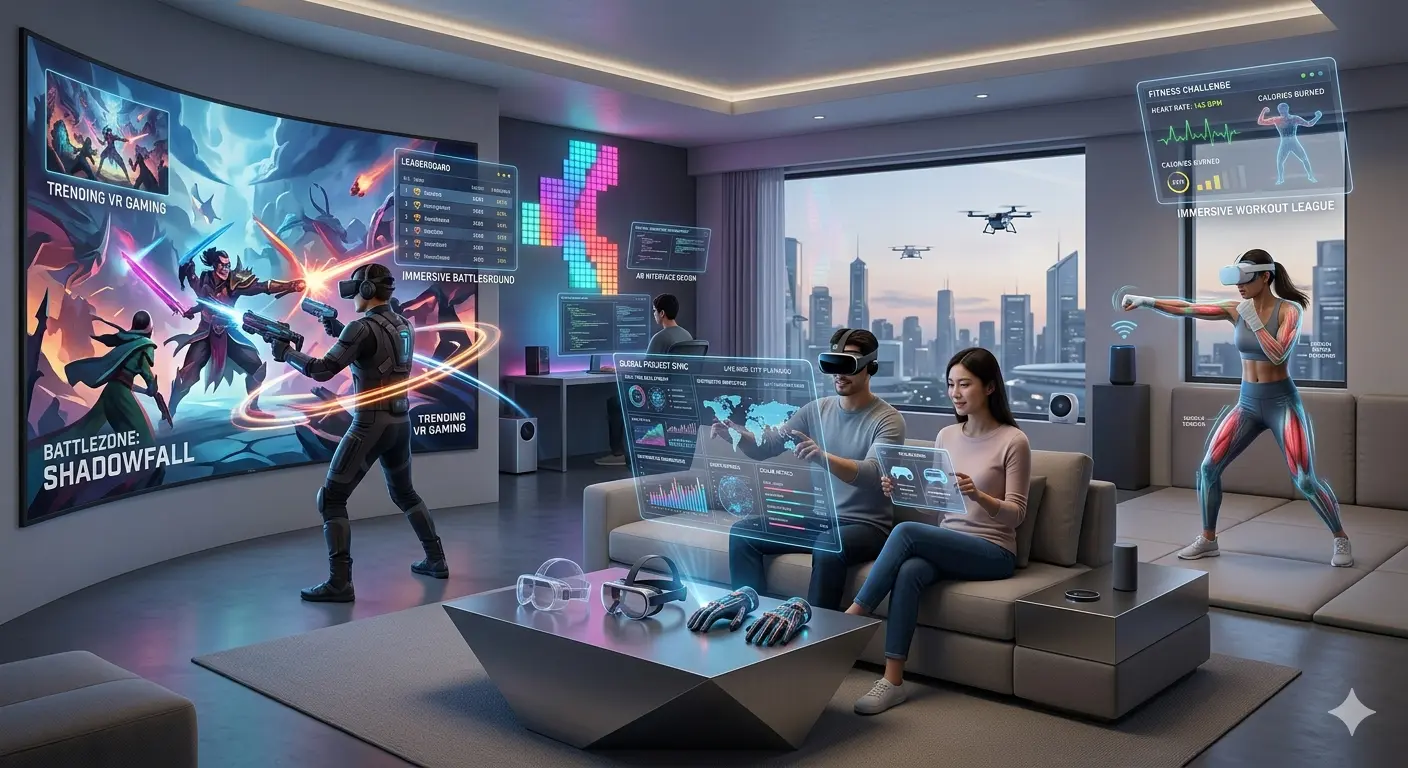
How to Connect Meta Quest 3 to TV: Easy Setup Guide for Beginners
Virtual reality feels even more exciting when other people can watch it too.
That is exactly why searches for connecting the Meta Quest to a TV are rising quickly online.
Many users want friends and family to see what the player sees inside the headset.
And thankfully, the setup is usually simple.
Why People Connect Meta Quest 3 to a TV
VR can feel isolating when only one person sees the experience.
Casting the headset to a television changes that completely.
It allows other people in the room to:
watch gameplay live
help guide players
enjoy reactions together
turn VR into a social experience
For parties, family gatherings, or multiplayer gaming nights, this makes a huge difference.
What You Need Before Starting
Before connecting Meta Quest 3 to a TV, users should make sure:
the headset is connected to Wi-Fi
the TV supports casting
both devices use the same Wi-Fi network
Smart TVs with built-in casting support usually work best.
Streaming devices can also help if the TV lacks direct casting support.
How to Connect Meta Quest 3 to a TV
The most common method involves wireless casting.
Basic setup steps usually include:
Turn on the Meta Quest headset
Open the camera or sharing options
Select the casting feature
Choose the available TV or streaming device
Confirm the connection
Once connected, the TV should begin showing the headset display in real time.
Why Some Connections Fail
Many users run into connection problems during setup.
Common issues include:
weak Wi-Fi signals
incompatible TVs
outdated software
network mismatches
Even small connection problems can interrupt casting quality.
That often frustrates first-time users.
The Bigger Shift in VR
Searches like this reveal something important.
VR is becoming more social.
Years ago, virtual reality felt like a solo activity.
Now users increasingly want shared experiences where other people can watch, react, and participate indirectly.
That shift may help VR become more mainstream over time.
Insight
Here’s the reality:
“Technology spreads faster when experiences become shareable.”
People enjoy entertainment more when others can experience part of it with them.
VR companies understand that.
That is why casting features matter more than many users realize.
A Real-World Observation
Anyone who has shown VR to friends knows this moment:
The person inside the headset reacts dramatically…
And everyone else in the room wants to see what caused it.
That curiosity turns VR into a group experience instantly.
Powerful Lines
“Shared experiences make technology feel more human.”
“VR becomes more exciting when others can watch.”
“Technology grows faster when it stops feeling isolated.”
Conclusion
Connecting Meta Quest 3 to a TV is becoming increasingly popular because users want virtual reality to feel more social and interactive.
And as VR continues growing…
Shared experiences may become just as important as immersion itself.